

Your Complete Guide to Ford SYNC 4
Your Complete Guide to Ford SYNC® 4: Tips, Tricks, and FAQs Answered
Ford SYNC® 4 is the latest generation of Ford's infotainment system, designed to elevate your driving experience with advanced features, seamless connectivity, and user-friendly controls. In this comprehensive guide, we’ll walk you through everything you need to know about Ford SYNC® 4, from basic setup and usage tips to troubleshooting and system maintenance.
What is Ford SYNC® 4, and When Was it Released?
Ford SYNC® 4 is the fourth iteration of Ford's innovative infotainment system, delivering enhanced voice recognition, wireless Apple CarPlay and Android Auto, cloud-based navigation, and convenient over-the-air software updates. First introduced in late 2019, Ford SYNC® 4 was rolled out in 2021 on select models like the Ford F-150 and Mustang Mach-E.
How to Reset or Restart Ford SYNC® 4
Are you experiencing issues with your SYNC 4 system? Here’s how to reset it:
Performing a Soft Reset
-
Press and hold the Power button and Seek Right button at the same time.
-
Hold for 10-20 seconds until the screen turns off.
-
Release the buttons, and the system will restart.
Performing a Master Reset
-
Tap the Settings menu on the SYNC 4 screen.
-
Select General.
-
Tap Reset, then choose Master Reset.
-
Confirm the reset, and the system will restart. Note: This will erase all personal data.
How to Update Ford SYNC® 4
To ensure your SYNC 4 system is up-to-date:
-
Connect your vehicle to a Wi-Fi network.
-
Navigate to Settings > General > Automatic Updates.
-
Enable automatic updates, or manually check for updates.
-
Follow the on-screen prompts to install any available updates.
Note: Ford SYNC® 4 supports over-the-air updates, so your system stays up-to-date without the need for dealership visits.
Ford SYNC® 4 Troubleshooting Tips
If you encounter issues with SYNC 4, these troubleshooting steps may help:
-
Ensure your device is connected properly via Bluetooth or USB.
-
Restart both your smartphone and the SYNC 4 system.
-
Check for any available software updates.
-
Perform a soft or master reset to resolve persistent problems.
For advanced issues, contact Medford Motors or your local Ford dealer for professional support.
How to Set Radio Stations on Ford SYNC® 4
Follow these steps to set up your favorite radio stations:
-
On the SYNC 4 home screen, select the Audio icon.
-
Choose AM, FM, or SiriusXM.
-
Use the Seek or Tuning options to tune to your desired station.
-
Press and hold one of the preset buttons until you hear a beep to save the station.
Can Ford SYNC 3 Be Upgraded to Ford SYNC® 4?
Unfortunately, Ford SYNC® 3 cannot be upgraded to SYNC 4. The new SYNC 4 system requires specific hardware that is only available in select Ford models. If you want to upgrade, check with your local dealer about vehicle options that come with SYNC 4.
How to Add Apps to Ford SYNC® 4
To add compatible apps to your SYNC 4 system:
-
Connect your smartphone via Bluetooth or USB.
-
Open the SYNC AppLink section in the Apps menu.
-
Download compatible apps like Waze, Spotify, or iHeartRadio on your phone.
Once downloaded, the apps will appear on your SYNC 4 screen for easy access.
Ford SYNC® 4 Compatible Apps List
Here’s a list of some of the most popular and compatible apps for Ford SYNC® 4:
Navigation: Waze, Google Maps, Apple Maps, Sygic, TomTom GO
Music & Audio: Spotify, Pandora, Apple Music, Amazon Music, Tidal, SiriusXM
Podcasts & Audiobooks: Audible, Pocket Casts, Google Podcasts, Overcast
Communication: WhatsApp, Messenger, Telegram, Zoom
Utilities & Productivity: FordPass, Amazon Alexa
How to Change Your Home Address on Ford SYNC® 4
To update your home address:
-
On the home screen, select Navigation.
-
Tap on the Menu and choose Favorites.
-
Select Home and enter your new address.
-
Confirm and save the new address.

How to Get Waze on Ford SYNC® 4
To use Waze for navigation:
-
Download the Waze app on your smartphone.
-
Connect your phone using Apple CarPlay or Android Auto.
-
Select the Waze icon on the SYNC 4 screen.
-
Use voice commands or touchscreen controls to navigate with Waze.

How to Mirror Your iPhone to Ford SYNC® 4
For iPhone users, here's how to mirror your device to the SYNC 4 screen:
-
Connect your iPhone via a lightning cable or wirelessly with Apple CarPlay.
-
Unlock your phone and grant any necessary permissions.
-
Select the Apple CarPlay icon on the SYNC 4 screen.
-
Your iPhone’s interface will be mirrored onto the SYNC 4 screen.
Does Ford SYNC® 4 Have Wireless Apple CarPlay?
Yes! Ford SYNC® 4 supports Wireless Apple CarPlay, allowing you to connect your iPhone without needing a cable.
To Connect Wirelessly:
-
Enable Bluetooth and Wi-Fi on your iPhone.
-
Navigate to Settings ? General ? CarPlay.
-
Select your vehicle from the list and follow the on-screen prompts.
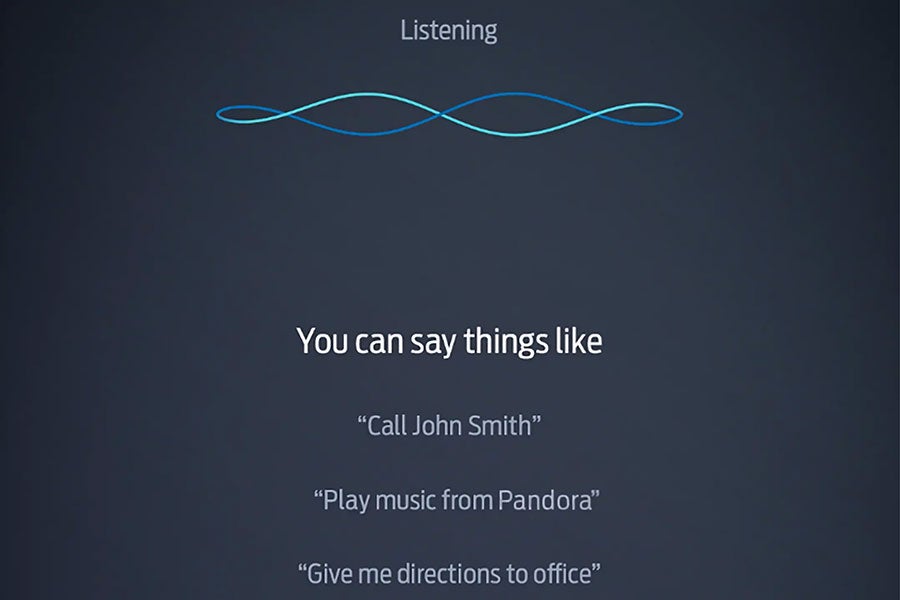
How to Use Voice Commands on Ford SYNC® 4
You can control key features of your SYNC 4 system using voice commands, including:
- “Navigate to [destination]”
- “Call [contact name]”
- “Play [song name] on Spotify”
- “What’s the weather like?”
Simply press the Voice Command button on your steering wheel to activate voice control.
Final Thoughts
Ford SYNC® 4 is a powerful, intuitive infotainment system designed to keep you connected and entertained while on the road. From troubleshooting and software updates to app integration and voice commands, this guide should help you get the most out of your Ford SYNC® 4 experience.
For any further questions or professional assistance, don’t hesitate to contact Medford Motors — we’re here to provide expert support and ensure your Ford SYNC® 4 experience is seamless!
Disclaimer:
The information provided in this guide is based on the best available knowledge and is intended for general informational purposes only. Ford SYNC® 4 features, app compatibility, and system functions may vary by model, software version, or geographic location. For any issues or questions regarding your Ford SYNC® 4 system, we recommend consulting your vehicle's manual or contacting a qualified professional. Medford Motors is not responsible for any damage or issues that may arise from following the instructions or advice presented here. Always seek professional assistance for any complex or troubleshooting needs.
Frequently Asked Questions
SYNC 4 offers several key upgrades over SYNC 3, including a larger, higher-resolution touchscreen with a more user-friendly interface, wireless Apple CarPlay and Android Auto, and cloud-based navigation for real-time updates. It also supports over-the-air updates, allowing the system to automatically update without needing a USB or dealer visit. Additionally, SYNC 4 features a faster processor and improved voice recognition, making it more responsive and efficient compared to SYNC 3, which requires a USB cable for phone connectivity and manual updates.
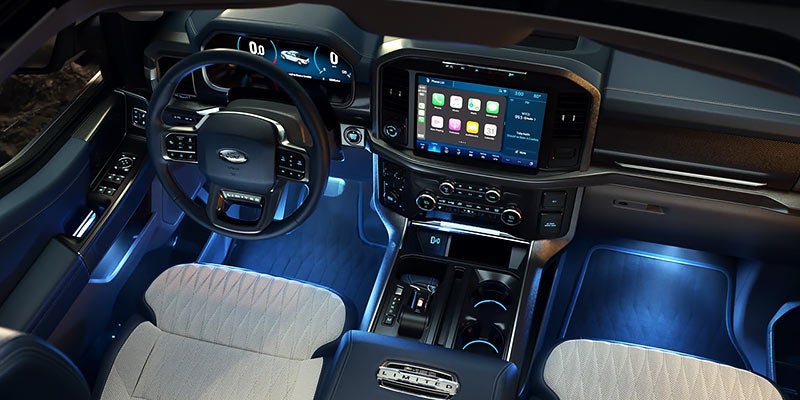
To determine if you have SYNC 3 or SYNC 4, check the display screen in your vehicle. SYNC 4 typically features a larger, higher-resolution touchscreen with a more modern interface, while SYNC 3 has a slightly smaller, less sharp display. Additionally, SYNC 4 supports wireless Apple CarPlay and Android Auto, whereas SYNC 3 requires a wired connection for these features. You can also check the system version in the settings menu or refer to your vehicle's manual for more details.
SYNC 4 is available on select 2021 and newer Ford models, including the F-150, Mustang Mach-E, Bronco, Explorer, Edge, Escape, and the 2021 and newer Super Duty trucks. It is also available on some Lincoln models. For a complete list of vehicles equipped with SYNC 4, check your vehicle's specifications or consult your local Ford dealership.

Medford Motors, Inc.
| Monday | 7:00AM - 5:00PM |
| Tuesday | 7:00AM - 5:00PM |
| Wednesday | 7:00AM - 5:00PM |
| Thursday | 7:00AM - 5:00PM |
| Friday | 7:00AM - 5:00PM |
| Saturday | 7:00AM - 12:00PM |
| Sunday | Closed |
| Monday | 7:00AM - 5:00PM |
| Tuesday | 7:00AM - 5:00PM |
| Wednesday | 7:00AM - 5:00PM |
| Thursday | 7:00AM - 5:00PM |
| Friday | 7:00AM - 5:00PM |
| Saturday | 7:00AM - 12:00PM |
| Sunday | Closed |
| Monday | 7:00AM - 5:00PM |
| Tuesday | 7:00AM - 5:00PM |
| Wednesday | 7:00AM - 5:00PM |
| Thursday | 7:00AM - 5:00PM |
| Friday | 7:00AM - 5:00PM |
| Saturday | Closed |
| Sunday | Closed |